Wednesday, January 4, 2023

Favorite Teacher Portrait

Ms. Goia, WHS

Take some nice portraits of your favorite teacher. Edit and post your best portrait and write a paragraph reflection in academic language explaining why you like and admire this teacher. Give details, reasons and examples as to why you chose this teacher.
  1. Email the teacher and explain your assignment. Get their permission to be photographed, let them know it needs to be done as soon as possible. You must make arrangements with the teacher on your own time, or during the block you have this class.
  2. Think about flattering positions, angles like birds eye, worms eye and how that effects the overall subject. 
  3. Once the photo has been uploaded to Photoshop, EDIT IT! Do some skin smoothing, blemish removal, eye bag softening- make your favorite teachers portrait flattering!
  4. Write your paragraph in WORD so that you have the benefit of spelling and grammar check. Before you post it, have a friend proofread it.  


Thursday, December 8, 2022

Typography Portrait inspired by Robert Reed


Follow instructions below:

You can use a self-portrait or take a photo of a friend or family member. PLEASE DO NOT USE A RANDOM STRANGER OR CELEBRITY FROM THE INTERNET. 

Make sure it’s a clear, well lit, high res image and your subject’s face isn’t covered by anything

The photo should be the face only

Plain white or gray background (You can shoot this easily in class using our white board if needed)

Write down around 30 or more words you want to use, they can be random, a poem, music lyrics, descriptive words about the subject, or quotes the subject has said. (Make sure they are school-appropriate.

Follow the tutorial to complete your portrait in Photoshop OR Photopea.com

Upload JPEG AND Photoshop file to Google Classroom Assignment. I want to see your layered file for proof of "work". 

DUE date on Google Classroom. 


Student Examples:


Not correct:


Wednesday, December 7, 2022

Photoshop Tutorial: Image in Text


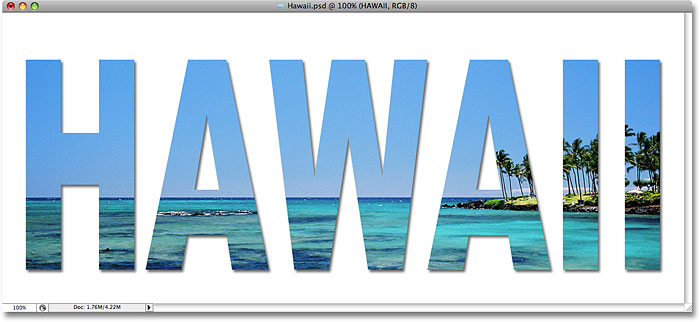
Click HERE to follow a step by step tutorial on placing an image in text (You will need to use your own images or ones from the internet) POST to your blog when finished for classwork credit! Title: Image in TExt


Photoshop image in text effect. Image © 2008 Photoshop Essentials.com.

POST TO CLASSROOM WHEN COMPLETED

Thursday, December 1, 2022

Typing on a path tutorial

  If you would like to use the images they use in the tutorial, you can find them posted in GoogleClassroom and download for your needs. Any photo however, may be used. Please POST your completed image for both assignments in classroom when complete for credit today.


First, Type on a path... (click for the tutorial)


Monday, November 21, 2022

Assignment: Surreal Photo Montage


Due: 


© Cassy Siena


HOW to COMPLETE PROJECT:

1. You will need to decide on a theme for your photomontage project. I would like you to write a paragraph based on a theme idea that you have. Some examples of themes could be a memory, dream, social issue, self portrait, and or traveling.

© Shagufta Zarren


2.In your artist statement describe the types of images you used and how manipulated them to support your theme. Use a minimum of 3 original images (internet photo use is optional).


Title: "Mirror to the other Side"

© your name here...


And of course, as always, an artist statement. Use this area to explain describe, analyze and interpret your image in comparison with what you had planned, problems you ran into, etc. . example below:


Title: Surrealistic Theme 
For my surreal photomontage I wanted a self portrait. I used a mirror, using one image of the back of my head and another of my face in a mirror. In Photoshop, I partially cracked the mirror, each little section of the cracked mirror has another image of something nice and warm and outside partially see through so that my image is still visible through it. The other side of the mirror has no cracks or anything. This represents me in that the half that is intact will be reality, this is me now and what i look like. The cracked half is broken and shows where I want to be and I what I want but cant necessarily get or have so a 'broken' thought I guess.


Tuesday, November 1, 2022

Assignment: Multiply Yourself!

Multiply Yourself!

Creating this assignment is a lot easier than it looks! First though, you'll need an idea. In class, we will be learning HOW to layer your photos and create one image, but outside of class you will need to take the time to create the photographs.


Taking the Pictures
To make clones of yourself, put your camera on a tripod and take multiple pictures of yourself in different spots within the same scene. If your camera has a timer (shown next), start the timer, and then move in front of the camera so it takes a picture of you. Shoot a minimum of you 3x.


Choose a different pose for each picture. you can take pictures and then move in front of the camera before the shutter clicks. try to make your “characters” look like they’re interacting with each other by their facial expressions. Click the below images to download them so you can try it yourself!


Opening the Pictures as Layers
Open the files in Photoshop as layers, with one on top of the other. You can open multiple pictures as layers by selecting File | Scripts | Load Files Into Stack. You’ll see your photos as multiple layers within a single picture, as shown next. You can use more than two pictures.


DUE DATE:
You'll need to have your photos Wednesday, in case you have to re-shoot. TAKE MORE THAN YOU NEED in case a few images do not fit.
I would like EVERYONE to post their final image to their blog followed by your original images by FRIDAY.


HINT! The more creative your narrative, the more successful the project! 


If working at home, follow the tutorials given below to get the best results!

  • https://digital-photography-school.com/clone-yourself-step-by-step-tutorial/
  • https://northrup.photo/using-photoshop-creatively-to-make-clones-of-yourself/ 

Thursday, October 27, 2022

Photowalk Thursday: Fall Theme


Try and capture some Fall colors or themes in your images on out walk today. Use Photoshop to saturate the colors to get the above like feel if desired. Bonus points for having students in your images that we may use for the yearbook!